QR Code Menu for Restaurant: A Setup Guide for India
7 min read
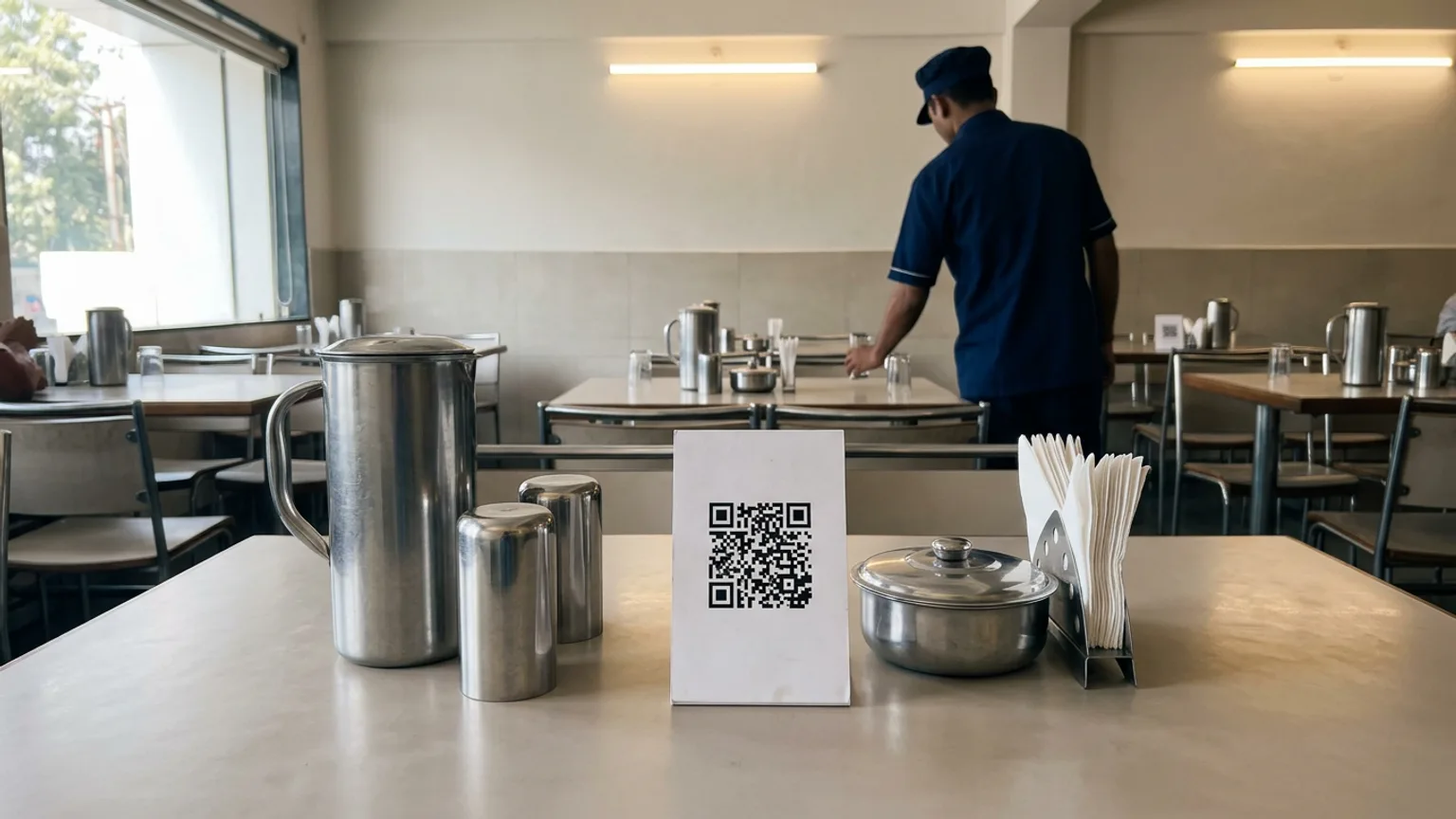
Printing a new menu every time a price changes is slow and expensive, and a torn, sticky laminated card is not what you want a guest to hold. A QR code menu for your restaurant fixes both: the guest scans a code on the table, sees your current menu on their own phone, and, if you set it up that way, orders from the same screen.
Most guides stop at the QR code itself. That is the easy part. This one covers what the code should open, where to place it, and how to avoid the mistakes that make guests ask for a paper menu anyway.
Three kinds of QR menu, and what each is good for
The word "QR menu" covers three quite different things. Pick the one that matches how your restaurant actually runs.
| Kind | What the guest sees | Good for | Watch out for |
|---|---|---|---|
| A QR that opens a PDF | Your old printed menu, shrunk onto a phone | Testing the idea in an afternoon | Pinching and zooming; every price change means a new file |
| A QR that opens a digital menu | Categories, photos and prices that fit the phone | Replacing printed menus without changing how you take orders | Staff still take the order by hand |
| A QR that opens a menu and takes the order | The same menu with Add buttons and a cart | Counters, cafés and tables where staff are stretched | Needs an order board in the kitchen or at the counter |
What to put on the menu before you print anything
A menu on a phone is read in a few seconds, standing or sitting, often in dim light. Get these right first:
- Short categories. Starters, mains, breads, rice, desserts, drinks. If a guest has to scroll through forty items to find chai, they will ask the waiter.
- One clear price per item, with sizes or portions as choices rather than as lines of small print.
- Photos for your best sellers. Ten good photos beat a hundred poor ones. Use daylight and a clean plate.
- Short names that guests already use. "Paneer butter masala", not a paragraph of description.
- Sold-out items marked sold out, so a guest does not order something the kitchen cannot make.
Where to place the QR code
A code nobody notices is a wasted print. Put one at each point where a guest decides what to eat:
- On every table, in a small stand, so guests at the table can order without waving down a waiter.
- At the entrance and the billing counter, for takeaway guests and people waiting for a seat.
- On the window or door, so someone walking past can see your menu before they come in.
- On takeaway bags and bills, so a first-time guest becomes a repeat one.
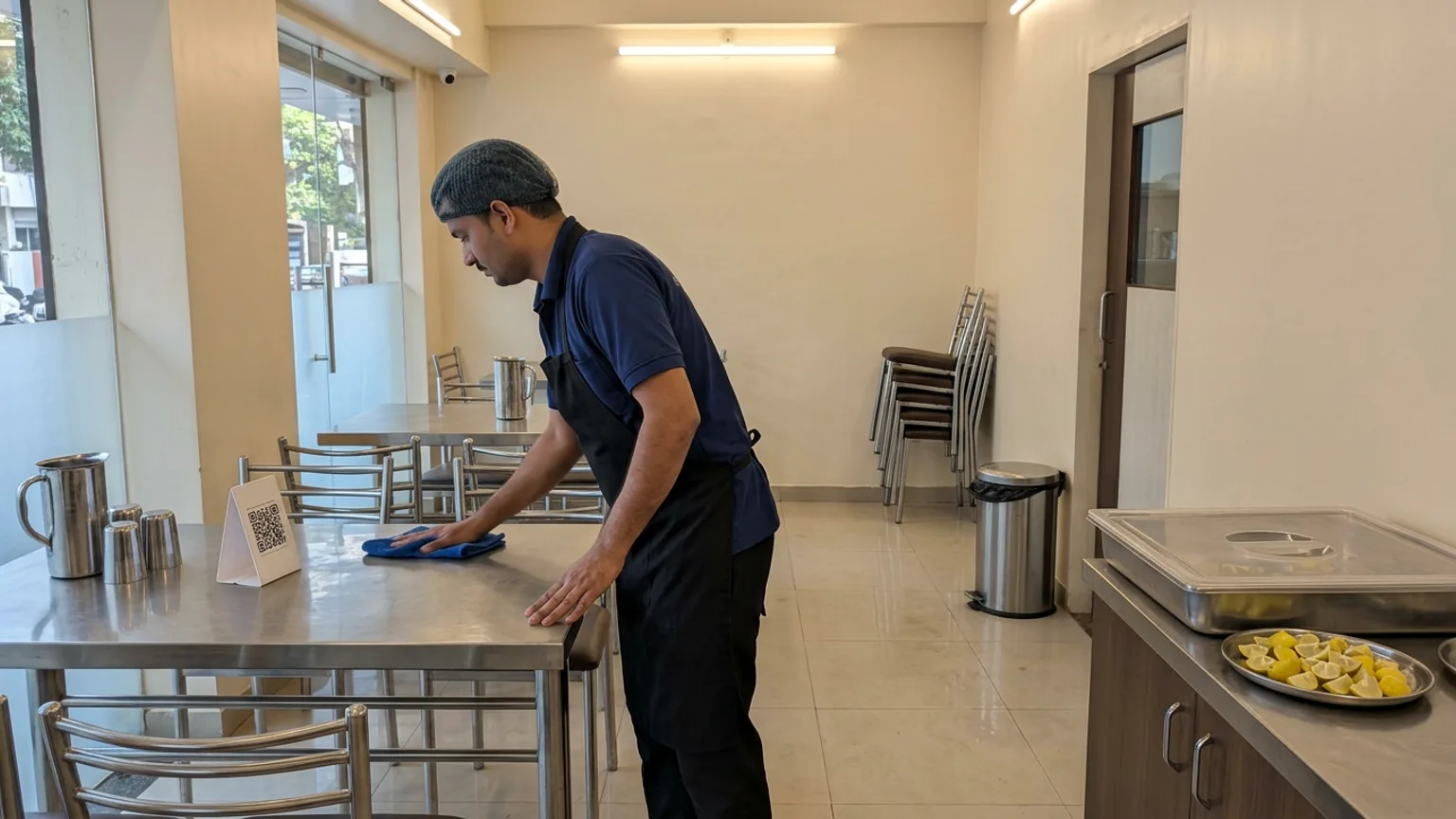
Print each code at least 3 cm wide, on matt paper or card so it does not glare under tube lights, and add one line next to it telling guests what happens when they scan, for example "Scan to see the menu and order". Then scan every code yourself on two or three different phones before service.
Set up a QR menu that takes orders
Here is how it works on KioSnap, built for Indian cafés and restaurants, from a single counter to a full floor. Most QR-ordering tools work in a similar order; this is the path on KioSnap.
Create your storefront
Sign up and choose Food & Beverages as your business type. Your storefront gets its own link and a QR code. See create your account.
Put your menu in
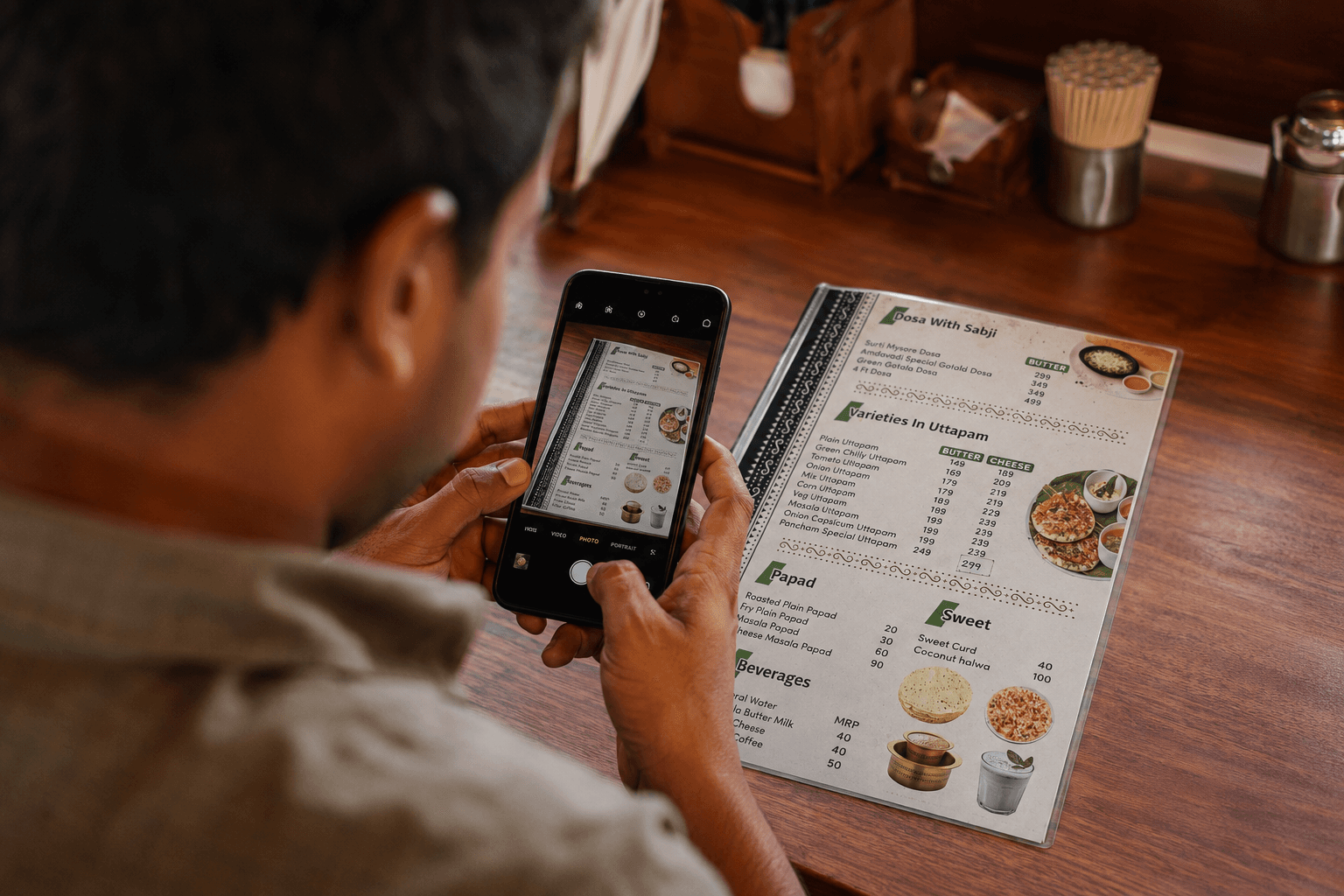
Add items by hand, or photograph your printed menu and let the AI read the items and prices for you to check. See scan your menu with AI.
Organise it into categories
Group items the way guests look for them. See organize with categories.
Add photos to your best sellers
Up to ten photos or a video per item. See add item photos and videos.
Print and place your QR
Print the store QR for the counter and the door. See share your store QR.
Give every table its own QR
With table management, each table gets its own code, so the order arrives already tagged with the table. See dine-in tables and QR.
What happens after a guest scans
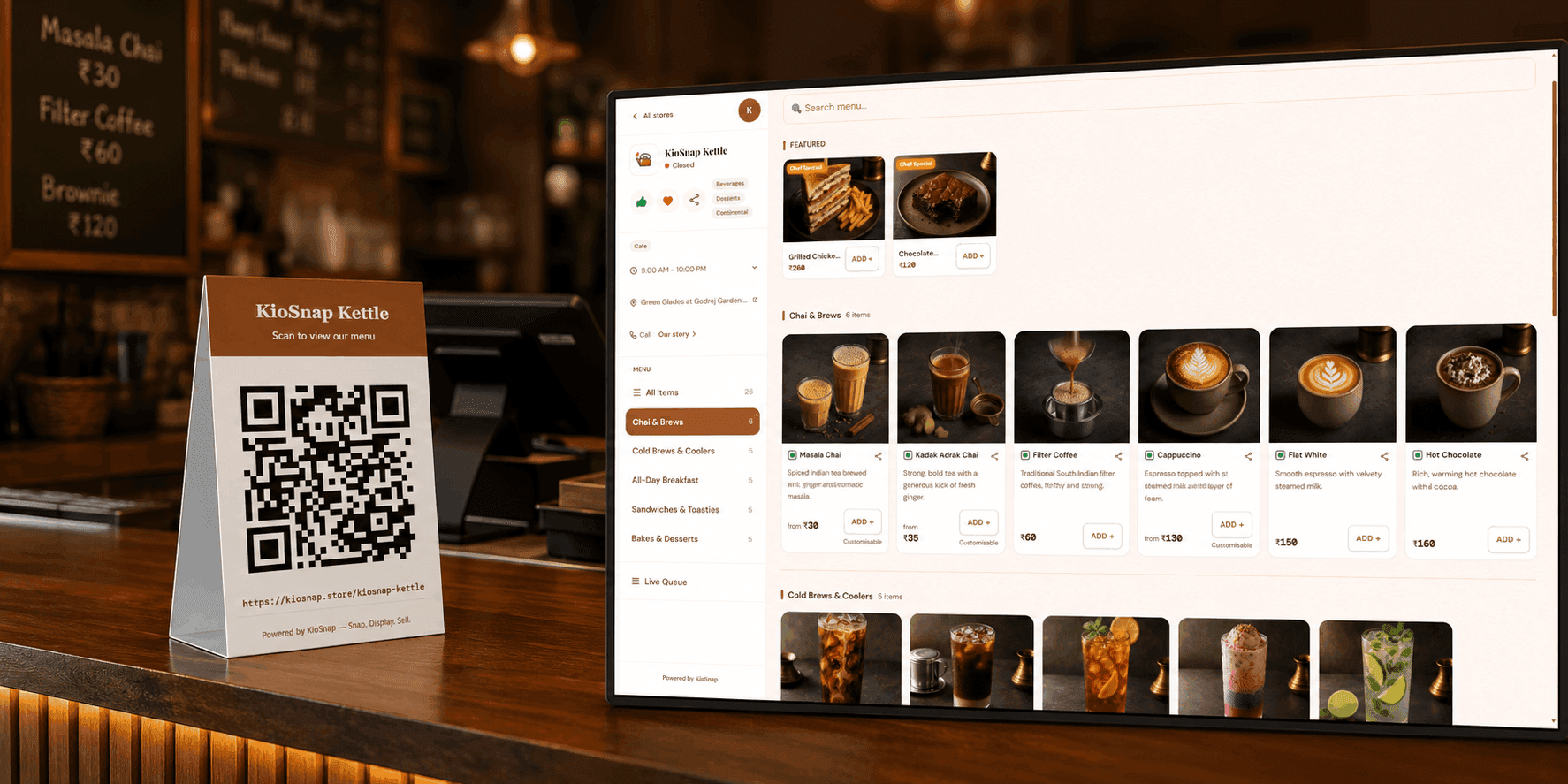
Customers need no app. The storefront opens in the phone's browser. For counter and table orders, guests can order without creating an account, and you decide whether the order asks for a name and mobile number.
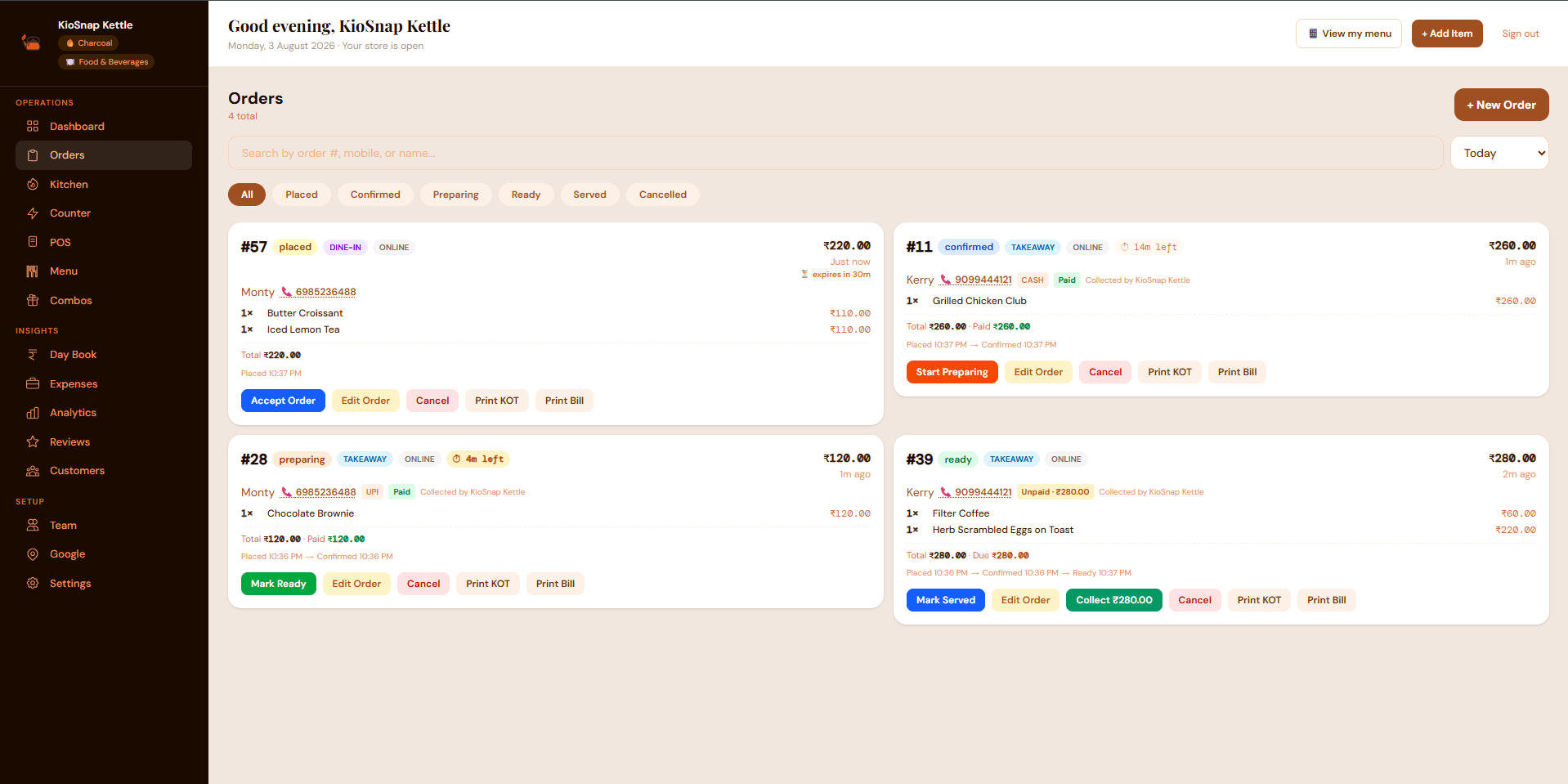
Orders appear live on your order board, moving from placed to confirmed, preparing, ready and served, so the kitchen sees what to cook and the counter sees what is waiting. Customers pay you directly, at the counter or the table, in cash or UPI. KioSnap does not collect money for you and takes no commission on your sales.
What it costs
A display-only menu on a QR is free on KioSnap's Wood plan, which holds up to three items. That is enough to see your storefront live, not to run a restaurant. Taking orders starts on the Charcoal plan at ₹299 a month (50 items, 2 staff, order management). Per-table QR ordering and table management start on the Gas plan at ₹599 a month (100 items, 3 staff), and Solar at ₹999 a month has unlimited items. Paid plans have a 14-day free trial and a one-time ₹199 setup fee. Full details are on the pricing page.
- for a free display menu
- ₹0
- a month to take orders
- ₹299
- free trial on paid plans
- 14 days
- commission on your sales
- 0%
A short checklist before your first service
- Scan every printed code on two different phones.
- Check that every price and every sold-out item is right.
- Teach your staff what a guest sees after scanning, so they can help in ten seconds.
- Keep a paper menu and a pen at the counter for the first week.
- Watch the first few real orders arrive, then fix whatever slowed them down.
Start with one table and the counter, learn what your guests ask, and then roll it out to the rest of the floor. Diwali is coming, and a full house is a poor time to discover a code that does not scan.
Common questions
Do guests need to install an app to use a QR code menu?
No. The menu opens in the phone's browser when the guest scans the code with their camera. There is nothing to download.
Can I change prices without reprinting the QR code?
Yes, as long as the code points to a live page. You edit the price in your dashboard, and the next guest to scan sees it.
How is a QR menu different from a QR ordering system?
A QR menu only shows the menu. A QR ordering system lets the guest add items and place the order, which then appears on your order board.
Can every table have its own QR code?
Yes, on KioSnap's Gas plan and above. Each table's code tags the order with its table so staff know where to serve it.
Do I have to pay commission on QR orders?
Not on KioSnap. Guests pay you directly in cash or UPI, and KioSnap takes no cut of your sales.
Put this into practice today
Create your free storefront in minutes. No app for your customers, zero commission on your sales.